.png?fit=max&auto=format&n=tsMQJyneJ1xquFUo&q=85&s=4d401cc03b547d99b6f75a6bd170c334)
- Device enrollment
- Secure activation
- Continuous monitoring
- Status evaluation
- Fix and re-check
Device enrollment
Devices are enrolled through DSALTA’s onboarding flow. Employees authenticate with a verification code sent to their work email, then receive a secure registration key tied to their organization.Continuous monitoring
The Device Monitor runs periodic checks on the system using read-only access. No destructive actions or invasive controls are applied.Check-in freshness matters. One of the device checks confirms that every device has reported in within the last 7 days. A device that stops checking in — because the agent was uninstalled, or the machine has been offline — will cause that check to fail even if every security setting on it is correct.
Status evaluation
Each security control is evaluated independently and marked as:
Results are visible at both the device level and the user (People) level.
Device checks are all-or-nothing across your fleet. Each check passes only when every enrolled device meets it. One laptop without disk encryption turns the whole disk-encryption check to Fail. Checks also report Fail when an organization has no devices enrolled at all, and when any device is not yet assigned to an employee — so enrolling and assigning devices is the first step to a passing result.
Secure activation
1
Secure authentication
Employees enter their work email to reach their onboarding tasks. DSALTA sends a verification code to that address, which the employee enters to confirm their identity — no password to set up. The code expires after 15 minutes; request a new one if it lapses.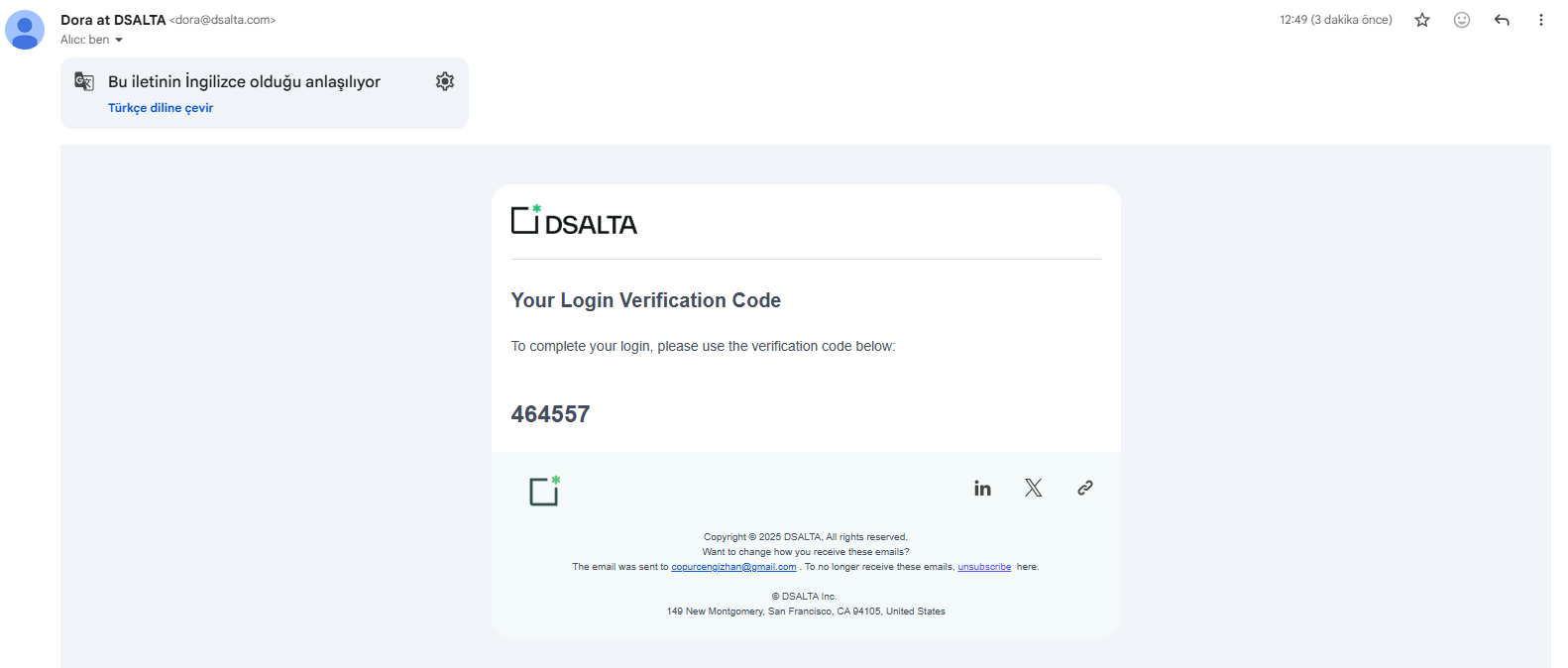
2
Receive the onboarding task
Employees receive a task during onboarding that contains the installer and the registration key.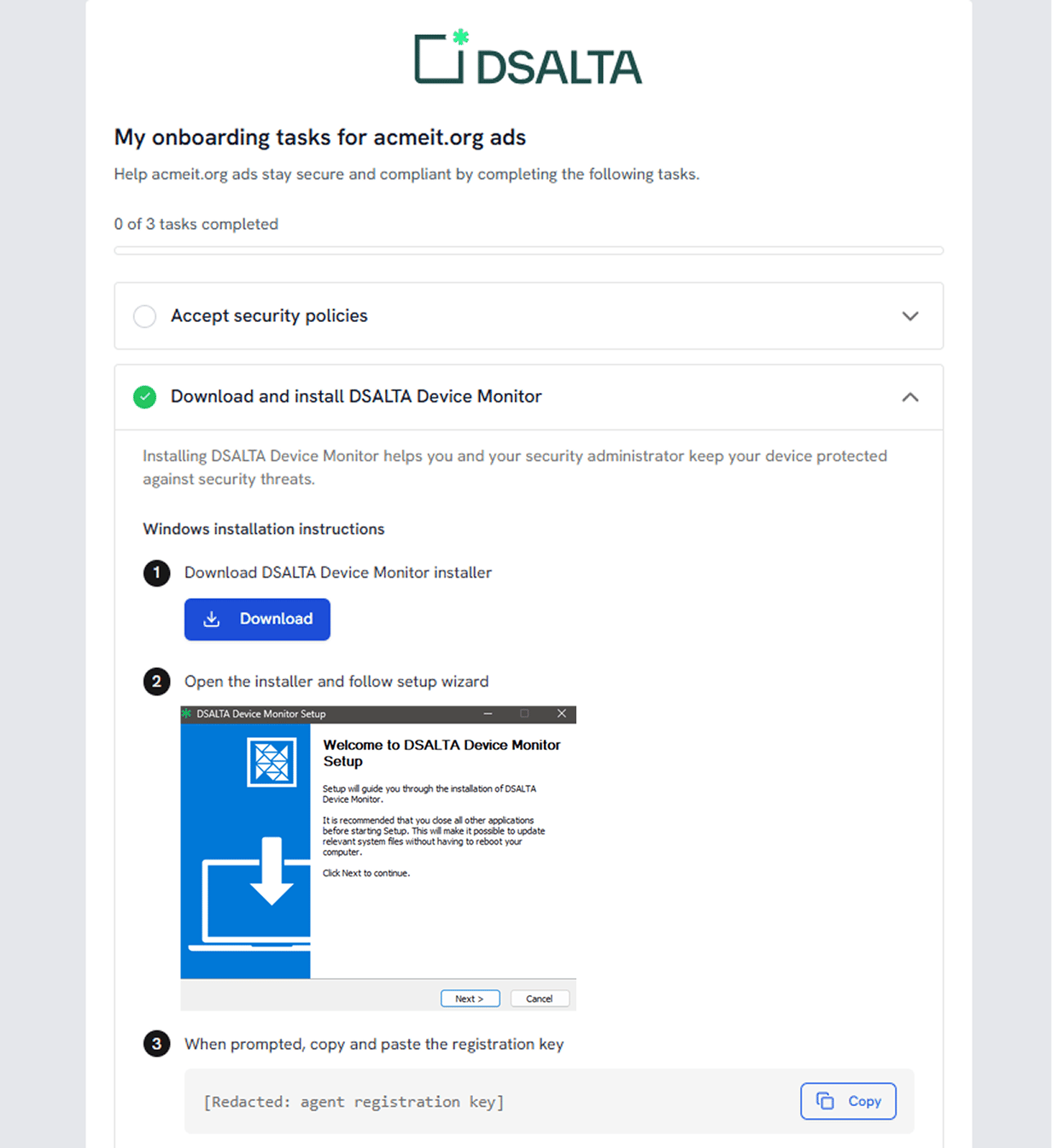
3
Download Device Monitor
The installer is provided directly in the task — no separate download portal. The task detects the employee’s operating system and offers the matching download.
4
Install the agent
A standard OS-native installer runs with no complex configuration.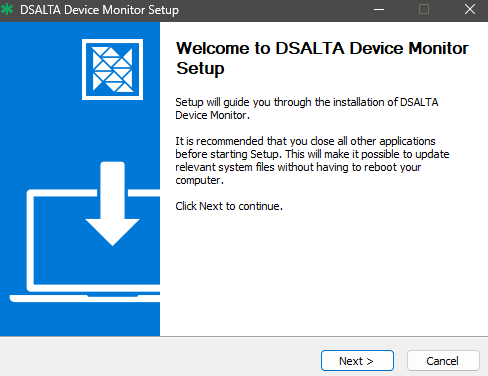
5
Activate the device
Paste the registration key from the onboarding task, or sign in with an enterprise account.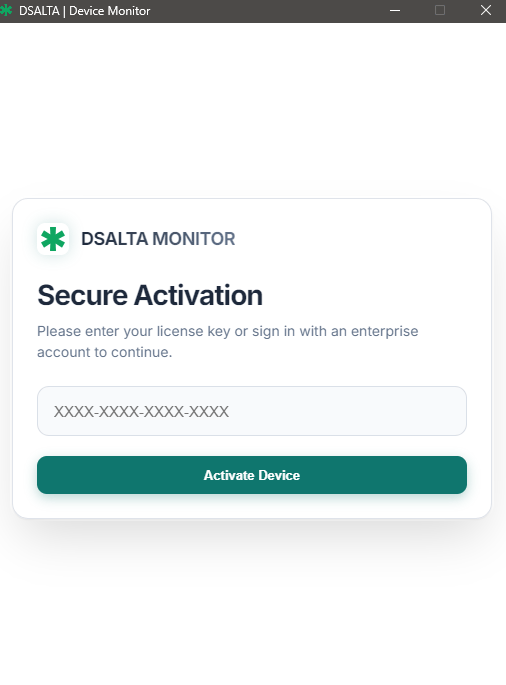
6
Verify active status
Once activated, the device reports as Active and begins sending its collected signals.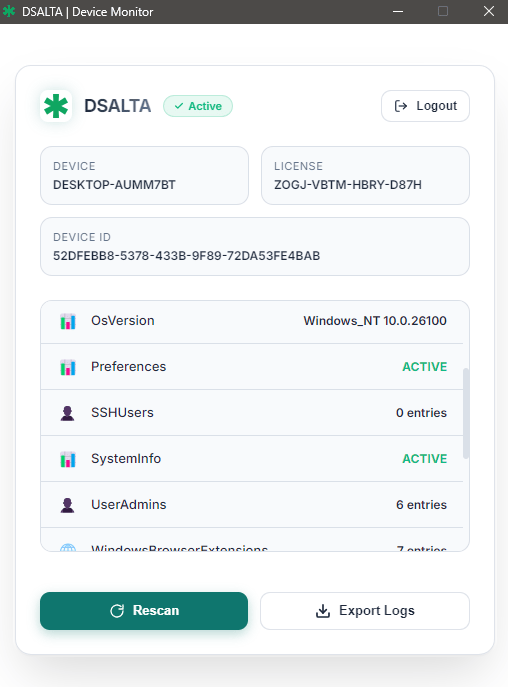
The device now appears on the Devices page under the Monitored tab, provided it is assigned to an employee. Devices without an owner arrive on the Unmonitored tab — assign one from the row’s ⋮ menu.