.png?fit=max&auto=format&n=tsMQJyneJ1xquFUo&q=85&s=4d401cc03b547d99b6f75a6bd170c334)
- Overview
- How to connect
- Automated checks
- Useful links
DSALTA connects to Clerk using read-only API access to collect compliance evidence automatically. Data feeds into your Access accounts page.
Read-only access. DSALTA never modifies, creates, or deletes resources in your Clerk account.
DSALTA collects this integration’s data when you connect it — you can refresh it at any time with Sync from integrations on the Integrations page. The compliance checks below re-run once a day at 02:00 America/New_York.
What DSALTA reads
DSALTA reads the users of the Clerk application instance your Secret key belongs to — the people who sign up to your product, not your Clerk Dashboard teammates. For each one it collects the name, email, active status and two-factor status, which appear on your Access page. The two access checks below compare that list to your People page, so on a consumer-facing app every signed-up customer is measured against your employee directory. Clerk’s user API has no role concept, so the role column is left blank (—) for every user.It calls these Clerk endpoints:/v1/users
Troubleshooting
Integration shows Disconnected
Integration shows Disconnected
There is no Reconnect button. Open Integrations → Connected, click Manage on the Clerk card, and check the Status tab — it shows either Connected and working properly or Connection issues detected. To restore a broken connection you must Disconnect and connect again, which permanently deletes the data and tests collected from Clerk. This can happen if the Secret key was revoked or rotated in the Clerk Dashboard.
Data is not syncing
Data is not syncing
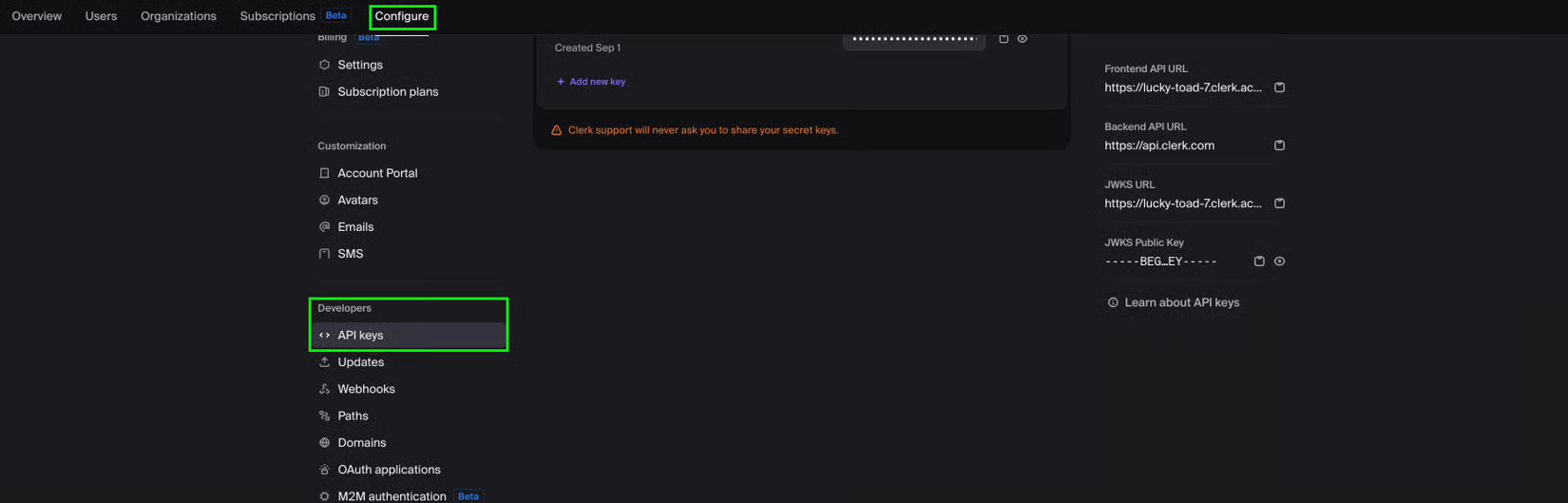
Confirm the Secret key is current (it may have been rotated under Configure → API keys in the Clerk Dashboard), then click Sync from integrations on the Integrations page (Connected tab) — it refreshes every connected integration at once.