.png?fit=max&auto=format&n=tsMQJyneJ1xquFUo&q=85&s=4d401cc03b547d99b6f75a6bd170c334)
- Overview
- How to connect
- Automated checks
- Useful links
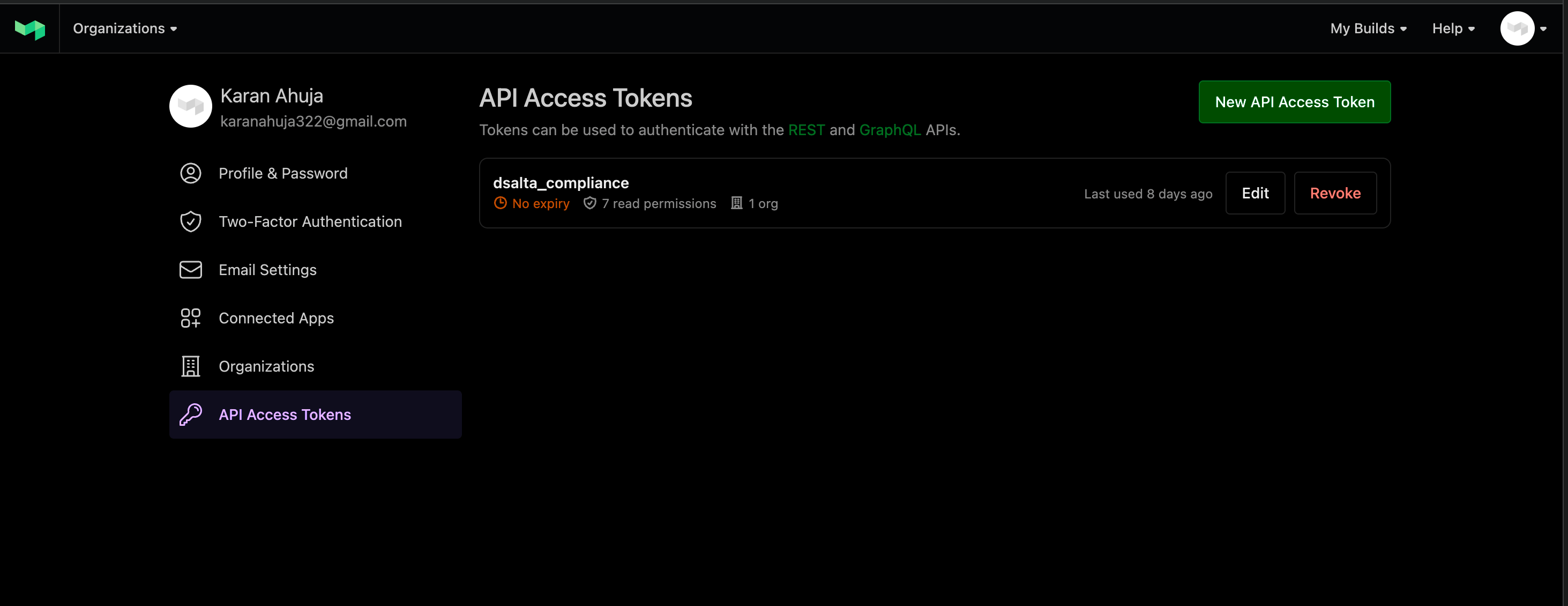
Connect Buildkite with a personal API access token to sync organization members and pipelines, and run access reviews. Read-only.
Read-only access. DSALTA only reads data from this integration. It never creates, modifies, or deletes anything in your environment, and every remediation step is performed by your team directly in the third-party product.
DSALTA collects this integration’s data when you connect it — you can refresh it at any time with Sync from integrations on the Integrations page. The compliance checks below re-run once a day at 02:00 America/New_York.
What DSALTA reads
DSALTA reads the Buildkite organization member roster — name, email and role (Admin or Member) — which appears on your Access page (Buildkite’s members API returns no account status, so every row is recorded as Active); and your Buildkite resources, which appear on your Inventory page.It calls these Buildkite endpoints:/access-token/organizations/{orgSlug}/members/organizations/{orgSlug}/pipelines
Troubleshooting
The connection fails to validate
The connection fails to validate
Invalid token, wrong organization slug, the token is missing the read_organizations scope, or the token was created while viewing a different Buildkite organization than this slug.
How do I check whether the connection is healthy?
How do I check whether the connection is healthy?
Open Integrations in the DSALTA sidebar, stay on the Connected tab, and click Manage on the integration’s card. Open the Status tab: it shows either Connected and working properly or Connection issues detected.Use the Status tab, not Overview — Overview always reports Connected regardless of the real state.
A check shows Failed and nothing changed on my side
A check shows Failed and nothing changed on my side
On an integration-powered check, Failed normally means DSALTA was blocked rather than that you are non-compliant. Open the test, go to Source Data, and read the result code: 403 is a missing permission, 428 is a setting DSALTA still needs, 500 is a failure on DSALTA’s side.A real compliance gap shows 207 and leaves the test looking Completed. See Understanding Test Results.
Data looks out of date
Data looks out of date
Compliance checks re-run once a day at 02:00 America/New_York. To refresh sooner, open Integrations → Connected and click Sync from integrations at the top right — it refreshes every connected integration at once.
How do I repair a broken connection?
How do I repair a broken connection?
There is no Reconnect, Repair or Refresh Token button. The only repair available is to disconnect and connect again.
Configure scope will not let me change anything
Configure scope will not let me change anything
That is expected. Configure scope is read-only — it shows what DSALTA is permitted to read, and has no Save action. To change what DSALTA can see, change the permissions on the credential in the third-party product, then disconnect and connect again.