> ## Documentation Index
> Fetch the complete documentation index at: https://help.dsalta.com/llms.txt
> Use this file to discover all available pages before exploring further.
# What Is Device Management?
> How DSALTA Device Management continuously monitors employee devices, enforces security controls, and turns endpoint posture into audit-ready evidence.
Device Management in DSALTA provides continuous visibility into the security posture of employee devices. It ensures that endpoints meet your organization's security requirements and remain compliant over time.
Instead of relying on one-time checks or manual confirmations, DSALTA continuously monitors device-level security controls and converts them into audit-ready evidence.
**Read-only by design.** The Device Monitor collects security-relevant metadata using read-only access. It applies no destructive actions and no invasive controls. See [What data is collected](/guides/device-management/data-collected).
## What Device Management covers
DSALTA Device Management focuses on endpoint security fundamentals:
* Disk encryption status
* Antivirus presence
* Screen lock enforcement
* Password manager usage
* Operating system version and device identity
These checks apply to company-owned and employee-owned devices used to access internal systems.
## Supported operating systems
| Platform | Supported versions |
| ----------- | ---------------------------- |
| **Windows** | Windows 10 or 11 |
| **macOS** | macOS 12 or later |
| **Linux** | Ubuntu 20.04+ / Debian based |
Each operating system is evaluated using native system signals and platform-specific checks. The onboarding task detects the employee's operating system and shows the matching installer and requirements.
## How it fits together
Employees install the DSALTA Device Monitor on their device using a secure registration key, delivered as an onboarding task.
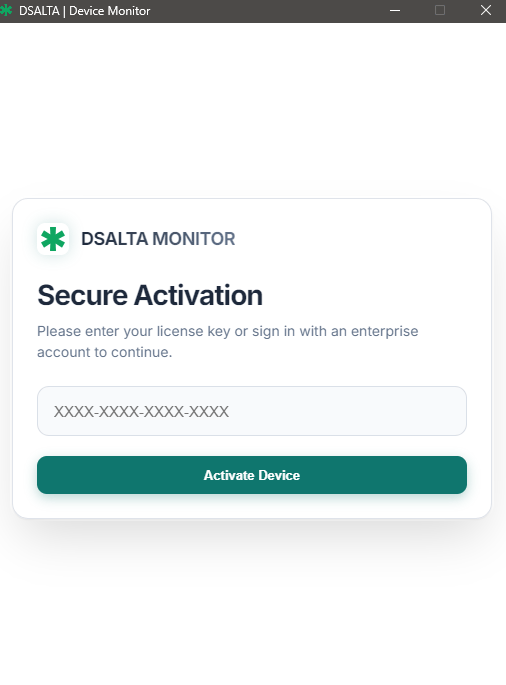
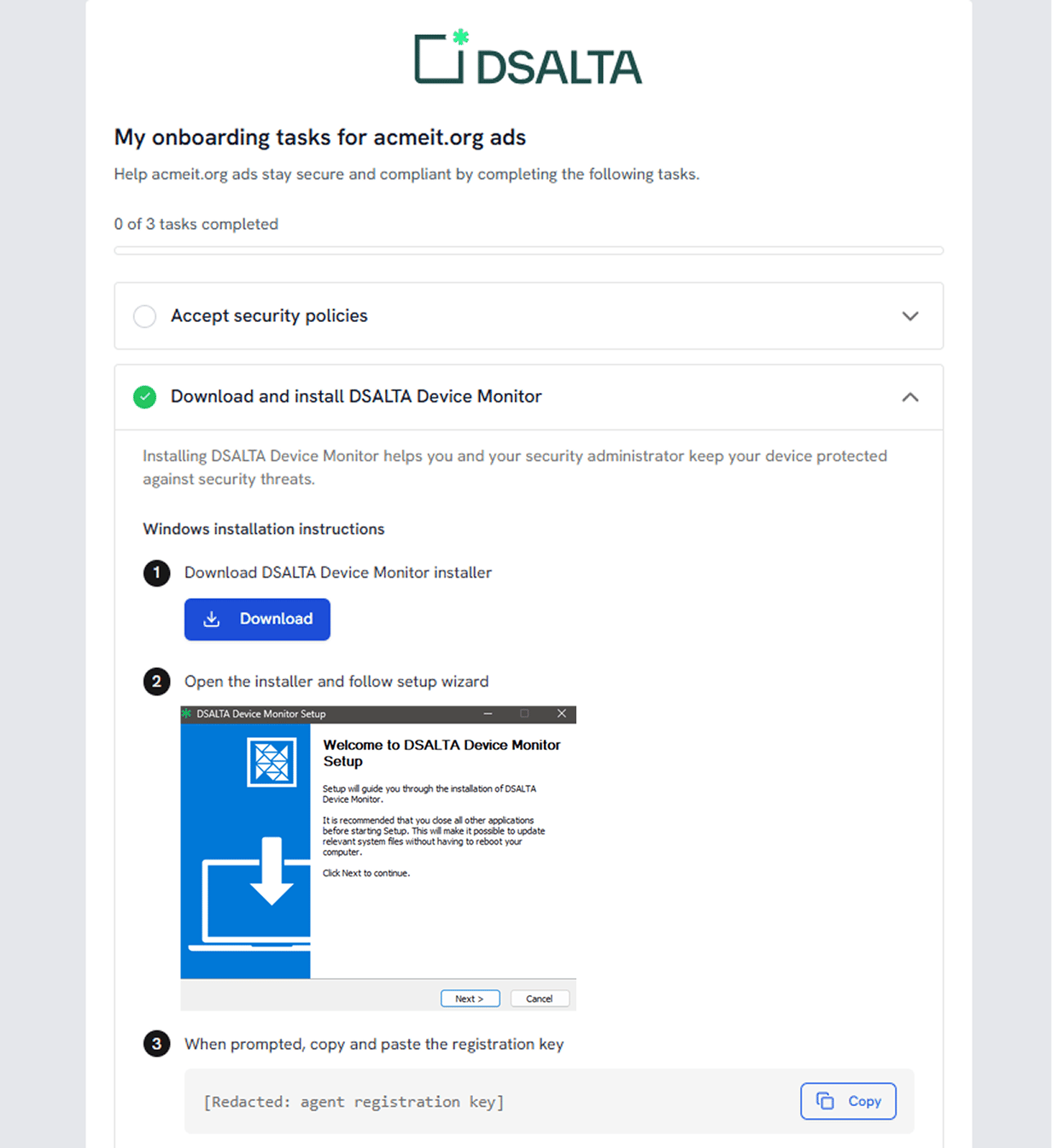 The employee pastes the registration key into the Device Monitor, which authenticates the device and links it to their account. See [How Device Management works](/guides/device-management/how-it-works) for the full employee walkthrough, including how they sign in.
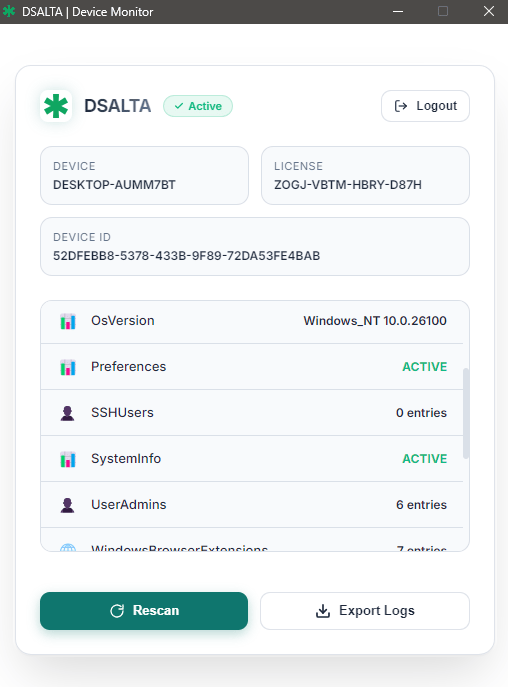
 DSALTA periodically collects the system-level signals required for security and compliance.
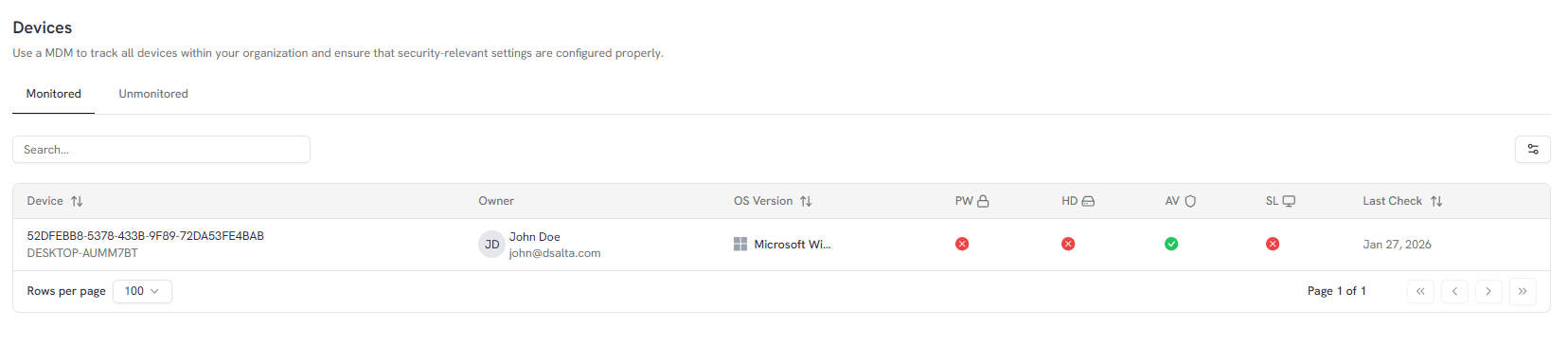
 Each device is evaluated against the security checks, and every control is marked **Pass** or **Fail** independently.
Admins see risks, status gaps, and remediation needs on the **Devices** page.
Each device is evaluated against the security checks, and every control is marked **Pass** or **Fail** independently.
Admins see risks, status gaps, and remediation needs on the **Devices** page.
 ## Where device checks appear
Results are visible at two levels:
* **Device level** — the [Devices](/guides/data-library/devices) page in the Data Library, on the Monitored tab.
* **User level** — the employee's profile on the [People](/guides/data-library/people) page.
## Related pages
* [How Device Management works](/guides/device-management/how-it-works)
* [What data is collected](/guides/device-management/data-collected)
* [Fix failed device checks](/guides/device-management/fix-failed-checks)
* [Devices (Data Library)](/guides/data-library/devices)
## Where device checks appear
Results are visible at two levels:
* **Device level** — the [Devices](/guides/data-library/devices) page in the Data Library, on the Monitored tab.
* **User level** — the employee's profile on the [People](/guides/data-library/people) page.
## Related pages
* [How Device Management works](/guides/device-management/how-it-works)
* [What data is collected](/guides/device-management/data-collected)
* [Fix failed device checks](/guides/device-management/fix-failed-checks)
* [Devices (Data Library)](/guides/data-library/devices)